Inbox & Supervisor
The Inbox is your mission control for all customer conversations. Whether the message came from Instagram or a website widget, every conversation appears here as a ticket with a clear workflow state.
Inbox Overview
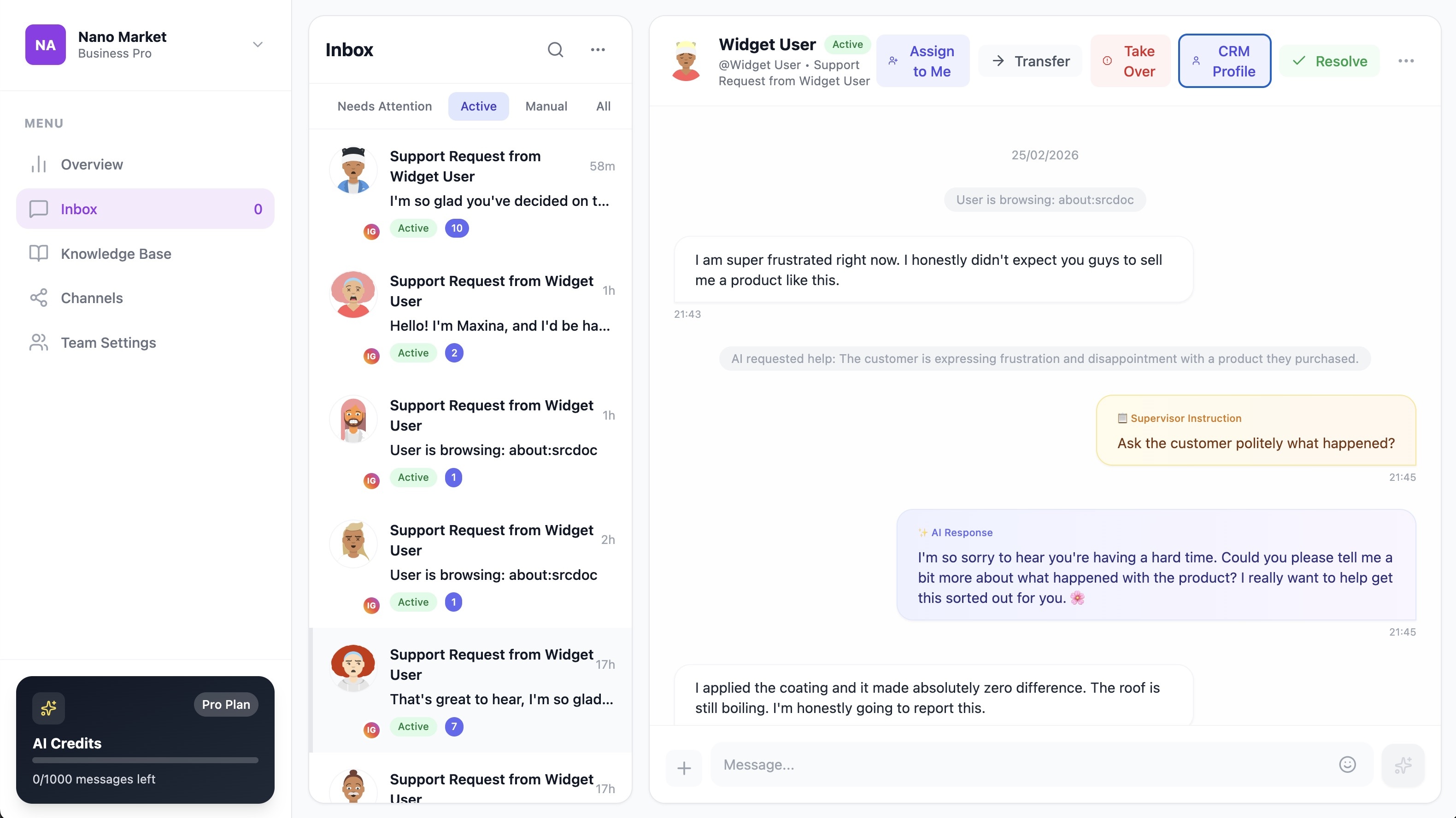
Each ticket in the inbox shows:
| Field | Description |
|---|---|
| Subject | Customer name or conversation topic |
| Last Message | Preview of the most recent message |
| Time | When the last message was sent |
| Status | Current workflow state (Active, Awaiting Supervision, etc.) |
| Team | Which team the ticket is assigned to |
| Unread Count | Number of unread messages |
Filtering
Filter your inbox by workflow state to focus on what needs attention:
- All — Every ticket
- Active — AI is handling these
- Awaiting Supervision — AI needs your help
- Manual Override — You're in control
- Resolved — Closed conversations
The Supervisor Workflow
Maxina AI implements a Human-in-the-Loop pattern — the AI handles conversations, but you're always in control.
Supervisor Actions
💡 Provide Guidance
When AI is stuck (ticket is Awaiting Supervision):
- Open the ticket
- Read the conversation and the AI's reason for escalating
- Type your instruction (e.g., "Offer a 10% discount on this item")
- Click Provide Guidance
- The AI crafts a response using your instruction and sends it
info
Your instruction is internal — the customer never sees it. The AI uses it as context to generate a natural-sounding response.
✋ Take Over
When you want to reply directly:
- Open the ticket
- Click Take Over
- The AI is completely disabled for this ticket
- Type and send messages directly to the customer
🔄 Return to AI
After taking over, you can give control back:
- Click Return to AI
- The ticket goes back to
Activestate - The AI will respond to the next customer message
🔀 Transfer Ticket
Route a ticket to a different team:
- Click Transfer
- Select the target team (e.g., Sales → Support)
- The ticket moves to the new team's queue
✅ Resolve Ticket
Close a completed conversation:
- Click Resolve
- The ticket is marked as
Resolved - No further processing occurs

Message Types You'll See
| Icon | Type | Description |
|---|---|---|
| 💬 | Customer Message | What the customer sent |
| 🤖 | AI Response | What the AI replied |
| 👨💼 | Supervisor Instruction | Your internal guidance to the AI |
| ⚙️ | System Event | State changes, transfers, etc. |